Study Timer Installed
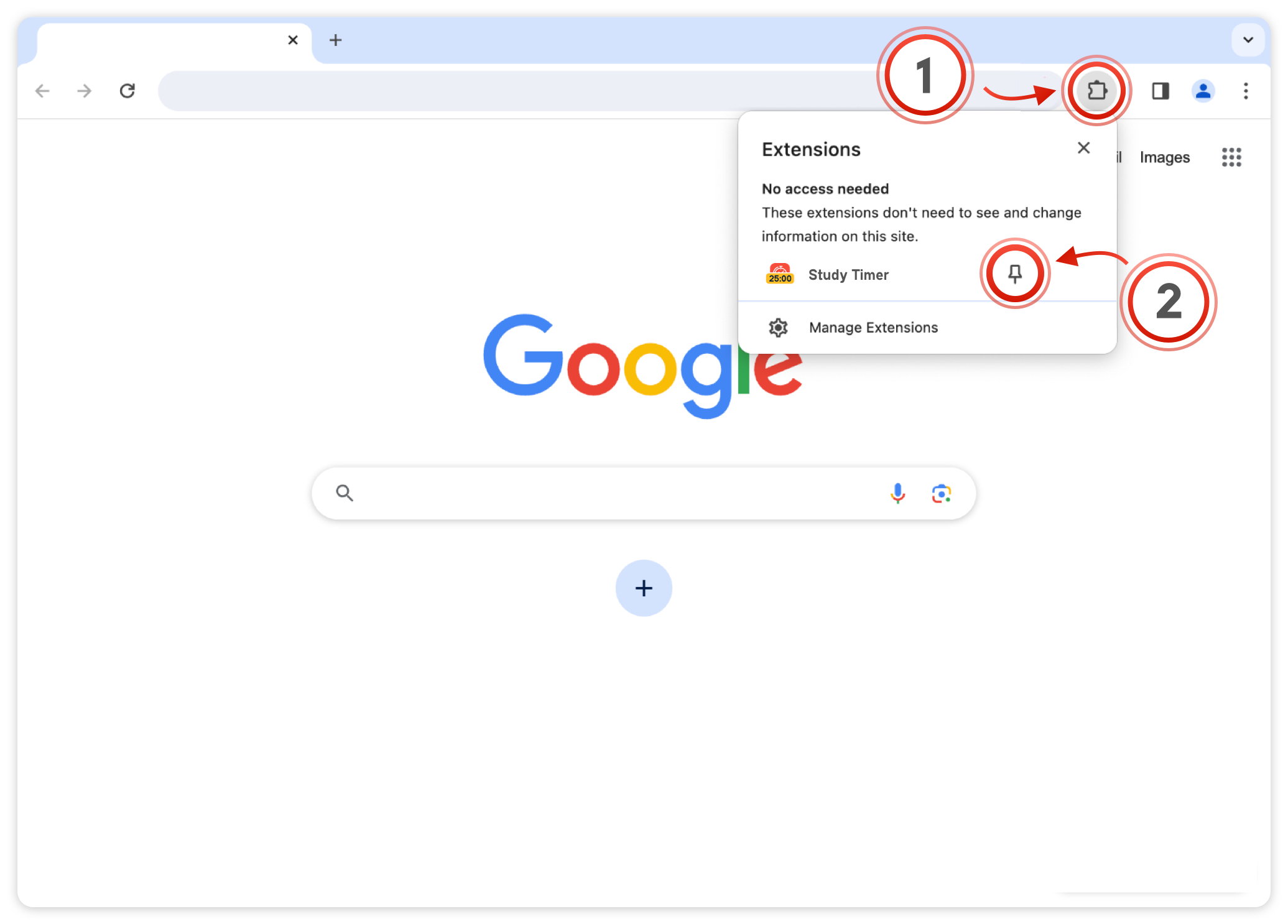
Click the puzzle piece (1) in the top right of your browser. Then, click the little pin (2) next to the extension:
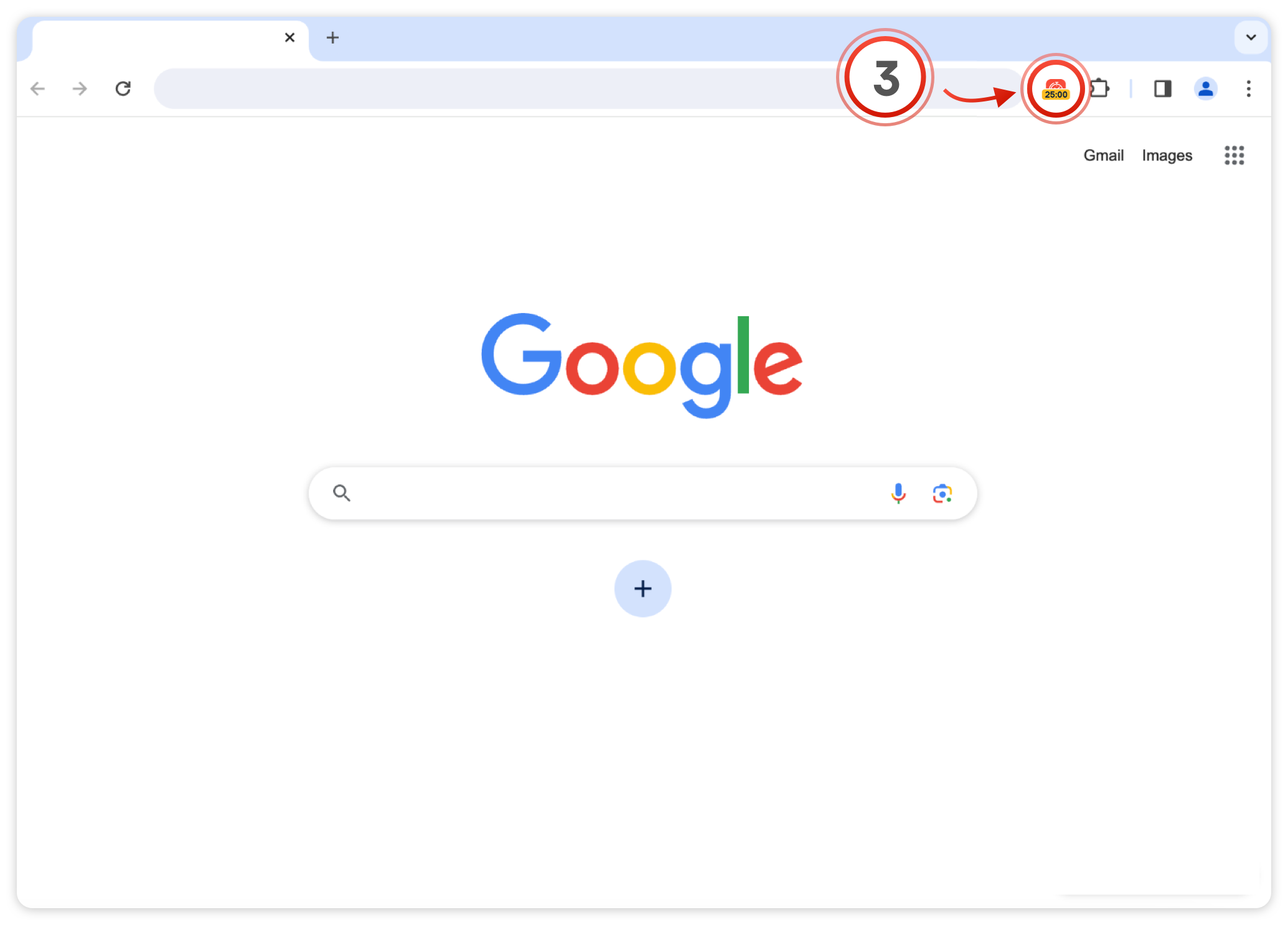
Open the extension (3) on any page to start using Study Timer:
Already pinned? See how to use Study Timer
Study Timer is ready
It is already on your toolbar. Here is how to get the most out of it.

-
1Start a focus session
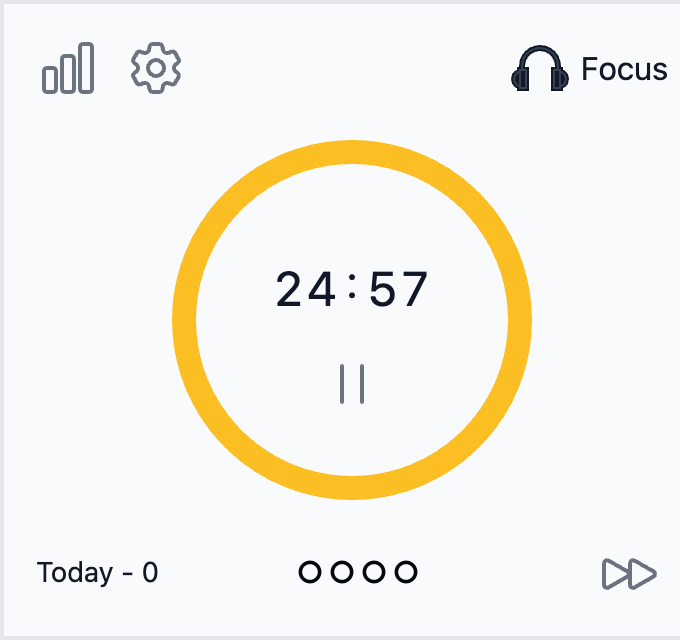
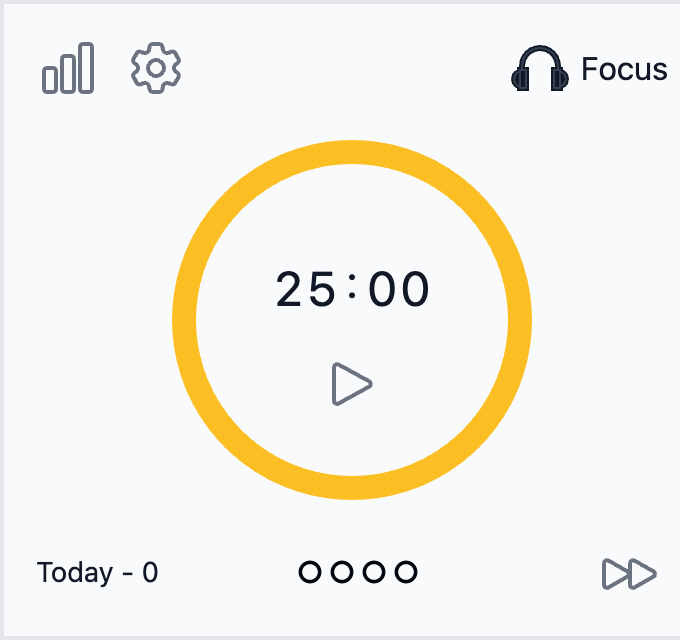
Press Play in the middle of the circle. The classic Pomodoro is 25 minutes of focus followed by a 5-minute break.
The badge on the toolbar icon counts down while you work: yellow for focus, blue for breaks. You can close the popup — the timer keeps running.
-
2Pause, skip and take breaks
Press Pause to stop, or use the shortcut Ctrl + Shift + T on any page — no need to open the popup.
Skip jumps straight to the next phase. The four circles show your progress to a long break; Today counts the sessions you finished today.
-
3Make it yours
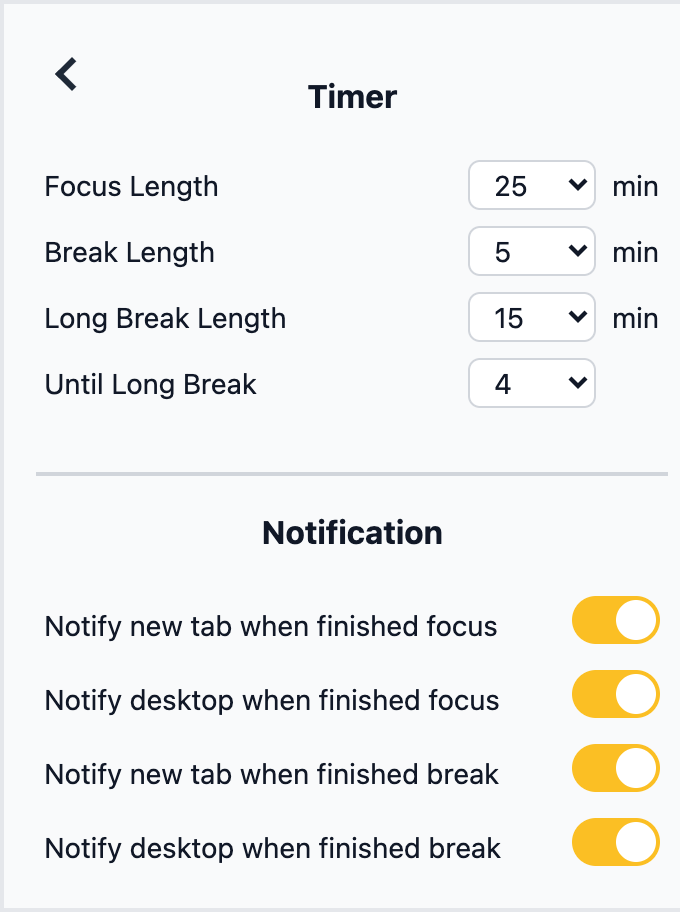
Open Settings (the gear) to choose focus, break and long break length, and how many sessions come before a long break.
Below are the notifications: a desktop alert and/or a new tab when focus or a break ends. Switch off the ones you don't need.
-
4Track your progress
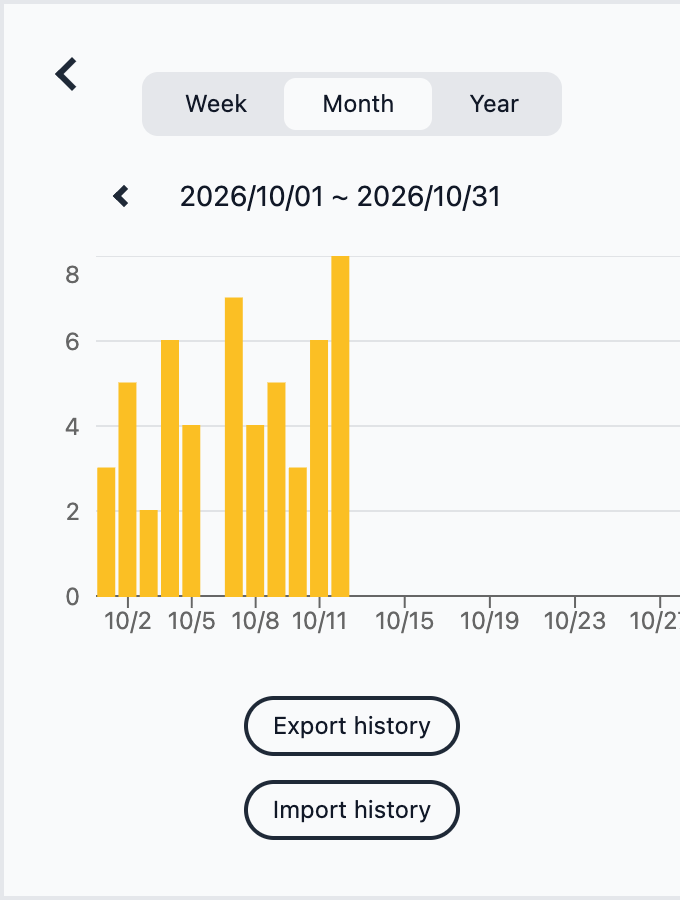
Open History (the chart icon) to see how many sessions you finished per week, month or year.
Export history saves it as a CSV file; Import history brings it back on another computer.
Don't see the icon on your toolbar? Show how to pin it